BIM Revit Drawings: A Practical Guide to Printing Without Costly Mistakes
Revit is a powerful documentation tool, but its effectiveness depends on disciplined workflows. By building print checks into your Revit process, you reduce errors, improve clarity, and protect project schedules.

Revit is one of the most powerful tools in modern construction documentation—but when drawings move from the model to paper, small setup mistakes can create big problems. Many issues blamed on “printing” are actually preventable Revit workflow errors that show up only after drawings reach the field.
Building Information Modeling (BIM) in Revit goes far beyond 3D visuals. BIM Revit drawings are the printed and PDF outputs your team uses in the field to build, coordinate, and sign off work. If these drawings are unclear, scaled incorrectly, or inconsistent from sheet to sheet, even a well‑modeled project can suffer delays and expensive rework. This Revit printing guide walks you through simple, repeatable checks that keep your BIM construction drawings reliable from the first issue to final handover. This guide walks through practical, real-world Revit steps that architects, engineers, and contractors use to ensure their drawings print clearly, accurately, and consistently.
Why Revit Printing Requires a Different Mindset
Unlike traditional CAD files, Revit drawings are generated from a live model. Views, scales, annotations, and line weights are controlled globally. This means a single oversight—such as an incorrect view template—can affect an entire plan set.
Successful teams treat printing as part of the Revit process, not something handled at the last minute.
Step 1: Confirm View Scales Before Anything Else
One of the most common Revit printing mistakes is incorrect scale. Drawings may look correct on screen but print at the wrong size if views are not set explicitly.
Before exporting or printing:
Open each plan, section, and detail view
Confirm the View Scale is correct (e.g., 1/8" = 1'-0", 1/4" = 1'-0")
Avoid using “Custom Scale” unless absolutely necessary
Never assume a scale carried over correctly—verify it.
Step 2: Use View Templates to Control Consistency
View templates are essential for reliable printing. Without them, line weights, detail levels, and visibility settings can vary from sheet to sheet.
Best practices include:
Creating dedicated templates for plans, sections, and details
Locking visibility and graphic settings
Assigning templates before placing views on sheets
This ensures drawings print uniformly across the entire set.
Step 3: Check Line Weights at Print Scale
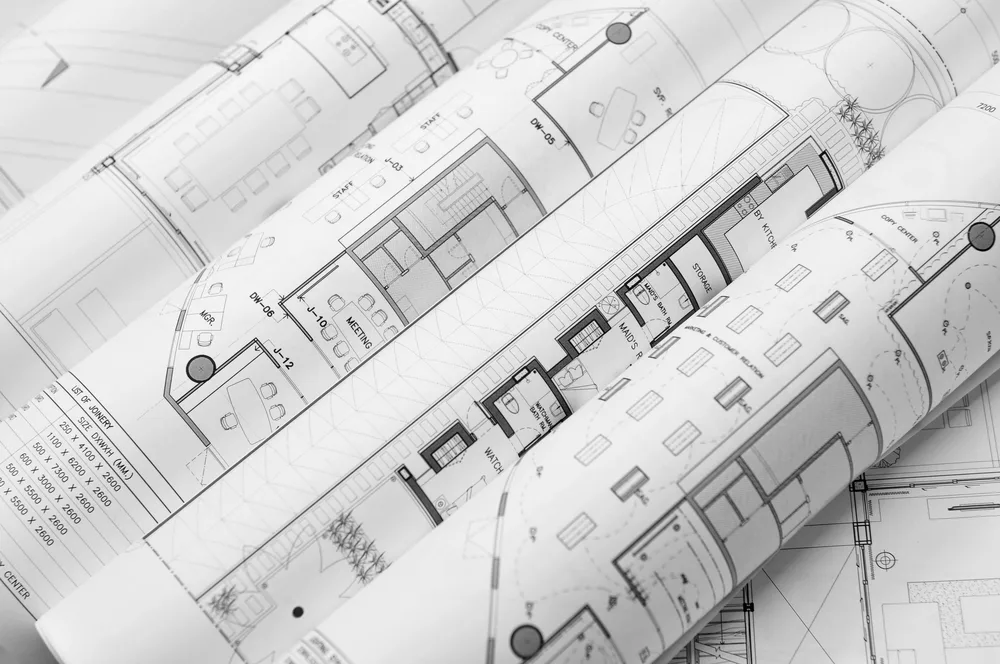
Line weights that look acceptable on screen may become unreadable when printed. Revit allows users to preview this. Don't make these 5 critical mistakes that ruin your Architectural Plan Printing.
Practical steps:
Enable Thin Lines off to see true line weights
Use Print Preview to review clarity
Adjust Object Styles and line weights if drawings appear muddy or faint
Clear hierarchy is critical for field readability.
Step 4: Verify Sheet Setup and Title Blocks
Sheet errors are another frequent issue. Misaligned title blocks, clipped views, or incorrect paper sizes can disrupt printing.
Before issuing drawings:
Confirm correct sheet size (ARCH D, ARCH E, etc.)
Ensure views fit fully within printable areas
Check that title blocks are consistent across sheets
This step prevents costly reprints and confusion during reviews.
Step 5: Export Print-Ready PDFs Correctly
When exporting PDFs from Revit:
Use Vector Processing for line clarity
Avoid raster exports unless required
Confirm orientation and scaling in the export dialog
Always review exported PDFs at full size before sending them to print.
Step 6: Test Print Critical Sheets
Experienced teams never issue full sets without testing. Printing one or two representative sheets helps catch problems early.
Look for:
Correct scale
Legible dimensions and notes
Consistent line weights
A small test print can prevent major downstream issues.
Why Professional Printing Still Matters
Even with perfect Revit setup, output quality depends on the printing process. Large-format architectural and engineering drawings must preserve scale, clarity, and consistency across revisions.
Professional blueprint printing services understand these requirements and help ensure Revit drawings perform as intended on the jobsite.
Final Thoughts
Revit is a powerful documentation tool, but its effectiveness depends on disciplined workflows. By building print checks into your Revit process, you reduce errors, improve clarity, and protect project schedules.
PrintMyDrawings.com supports Revit-based projects with professional architectural and engineering drawing printing, helping teams turn coordinated models into dependable, jobsite-ready plans.
Start Printing Today
Get professional printing with our easy online ordering system.
Available Templates
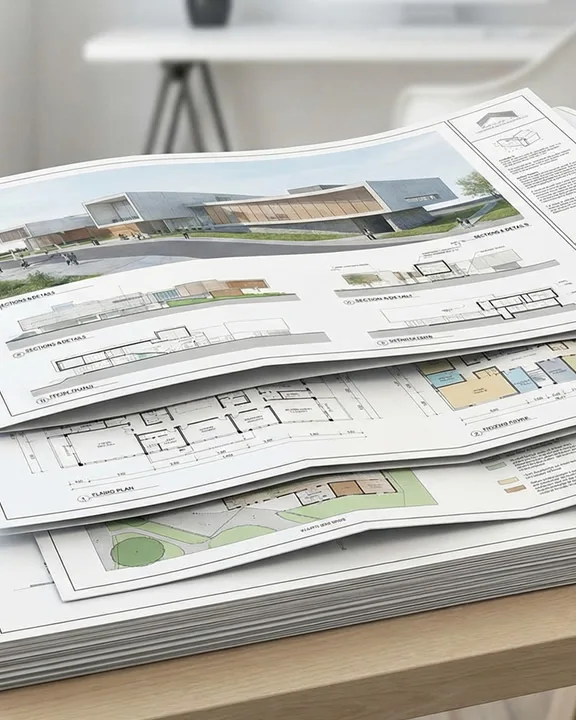
- Black Line Plan Printing Detailed building section drawings with structural elements.
- Color Line Plan Printing Large format plans suitable for presentations on standard bond crease-free paper.
Related Articles

In-House Plotting vs. Outsourcing Large Format Printing
Explore the benefits of large format printing versus in-house plotters for AEC professionals, ensuring accurate documentation and reliable workflows.
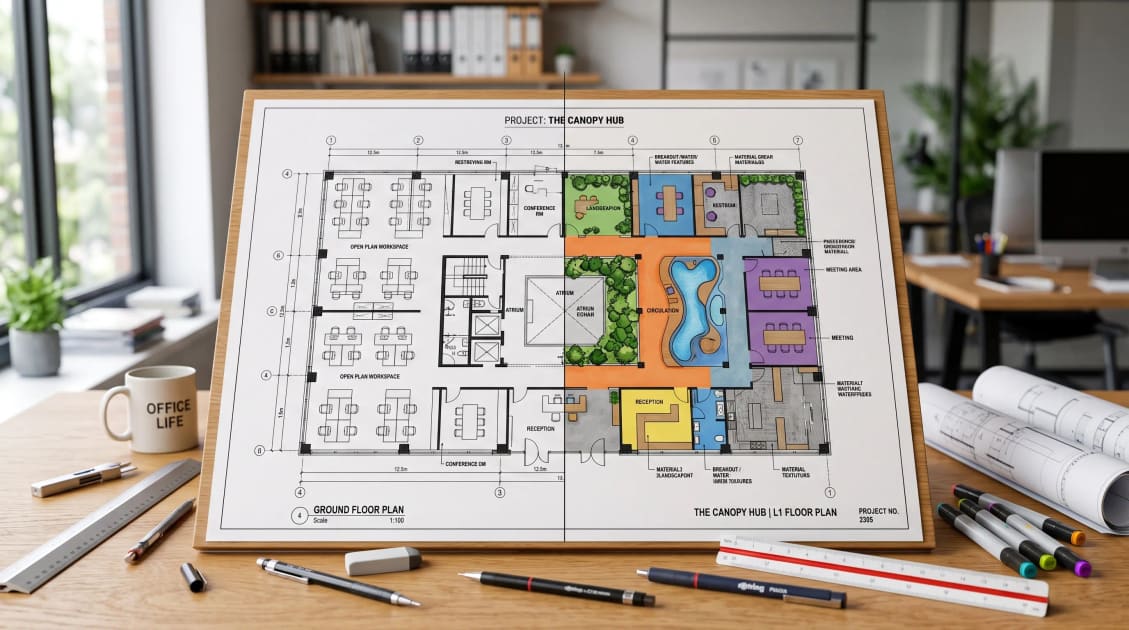
Black Line Printing vs Color Plan Printing: Which is the Best for Construction Projects?
Explore the differences between black line printing vs color plan printing. See how each one impacts construction plans and decision-making.

Preflighting PDFs for Large-Format Printing
Learn how to preflight PDFs for large-format printing to ensure accurate construction documents. Tips for fixing scale issues and common export traps.

How to Reduce Blueprint Printing Costs for Construction Teams
Discover effective strategies to reduce blueprint printing costs for architecture and construction teams without compromising quality.